KuKuTool guide
How to Download Rednote Videos and Photos
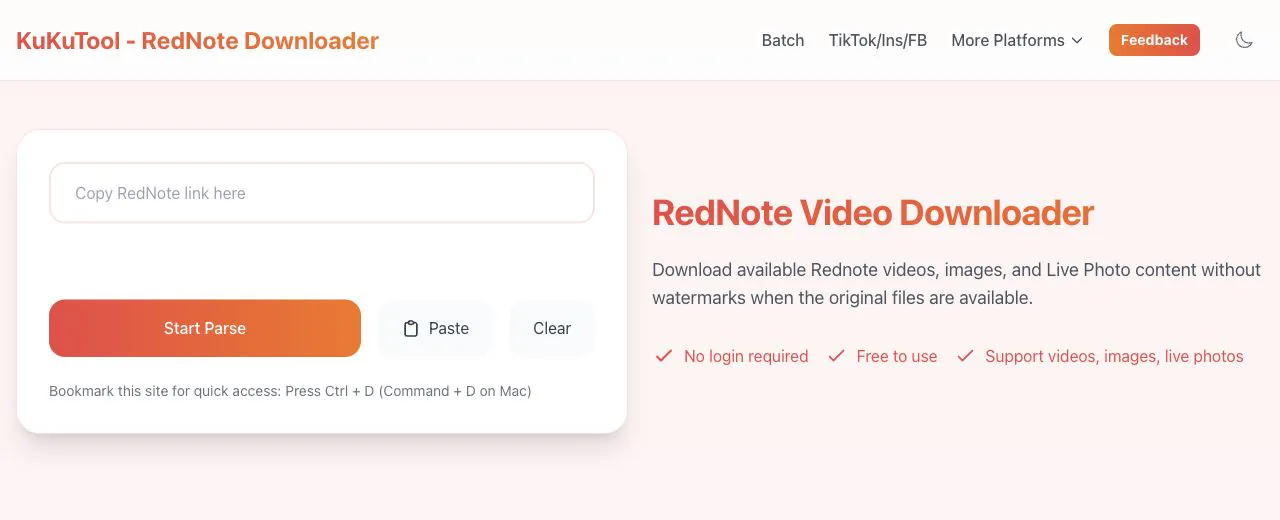
Copy a Rednote (Xiaohongshu) post link and paste it into KuKuTool to load the available videos and photos. The tool supports video posts, photo and gallery posts, and Live Photo posts. It supports watermark-free video and photo downloads, plus original videos up to 4K when the source post provides an accessible file at that resolution. Available quality depends on the original post and the returned media.
- Videos · Photos · Live Photos
- Watermark-free videos and photos
- Original videos up to 4K
Which Rednote post formats are supported?
| Post format | What you can download |
|---|---|
| Video posts | Load available videos and covers, with watermark-free video downloads. Original videos up to 4K / 2160P are supported when the source post provides an accessible file at that quality. |
| Single-photo posts | Load the available photo from the post and download its watermark-free file when available. |
| Photo galleries | Browse the returned photos, preview individual images, and download the files you want. |
| Live Photo posts | Live Photo posts are supported, but the website currently returns their moving content as videos. The downloaded files are not directly exported as Live Photos. |
Copy the Rednote post link
Open the public post you want to save in Rednote or Xiaohongshu, tap Share, and choose Copy Link. The same starting step works for videos, photo galleries, and Live Photo posts.
Keep the complete URL from the share text. If the copied content includes a caption alongside the link, you can paste that text together with the URL.
Open the downloader and paste the link
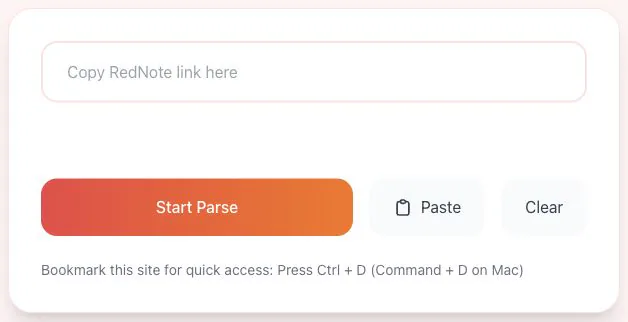
Open the KuKuTool Rednote downloader and paste the copied content into the field labeled “Copy RedNote link here”.
Use Paste, press Ctrl + V / Command + V on a computer, or touch and hold the input field on your phone and choose Paste. If your browser blocks clipboard access, paste manually.
Load the videos, photos, and gallery files
Choose Start Parse and wait for the page to load the available media. If the website asks for a verification code, sign-in, or confirmation of a parsing entitlement, follow the current on-screen instructions before continuing.
Once parsing succeeds, review the returned video or photo sections. Gallery posts can contain several downloadable photos, while Live Photo posts may return one or more video files. The available files and quality depend on that post.
Download watermark-free files and available 4K originals
Use Download Video for videos, Download Image for images, or the download button beside a specific photo. Preview the content and select the files you need. Watermark-free video and photo downloads are supported when the original watermark-free files are available.
When multiple resolutions are returned, select the quality you want in the quality selection area. Original videos up to 4K / 2160P are supported when the source post contains an accessible file at that resolution. A missing 4K option does not mean a lower-resolution video can be upscaled to 4K by this website.
You can also follow the on-screen instructions for the Ultra HD option to check for further available media. Sign-in or entitlement requirements follow the current page prompts. This option does not guarantee a higher-resolution file for every post.
Frequently asked questions
Why is there no 4K original video in the results?
4K availability depends on the original video and the media currently supplied by the source platform. If the post was uploaded at a lower resolution, its HD file is unavailable, or access is restricted, only other resolutions may appear. Choose a version that is actually available.
Why did my Live Photo download as a video?
The website supports parsing Live Photo posts, but currently provides their moving content as videos rather than exporting Live Photo files directly. Follow the conversion tutorial linked above if you need a Live Photo. Live Photo parsing currently supports standard resolution, not HD.
Where are my downloads? Can I save them directly to Photos?
On a computer, check your browser’s download folder. On iPhone, find the video or image in Safari’s download list or the Files app, open it, and use the system share menu to choose Save Video or Save Image when supported by the file format. On Android, check your browser’s downloads or file manager. Downloading a file and saving it to your photo library are separate steps; the available actions vary by browser and format.
What should I do if parsing or downloading fails?
Check that the post is still public and accessible, copy its complete link again, and retry parsing. Parse again if a media download link has expired. Paste manually if clipboard permission is blocked. If your browser restricts the download, follow the website’s instructions to open the media link in a new tab or use an offered app option. For repeated failures, use the website’s feedback link to describe the issue.
Ready to save your post?
Copy the public post link, return to the downloader, and choose the videos, photos, and available quality you want.
Open the Rednote downloader